
Keyboard Shortcuts
Help > Keyboard shortcuts shows the same list inside the app.
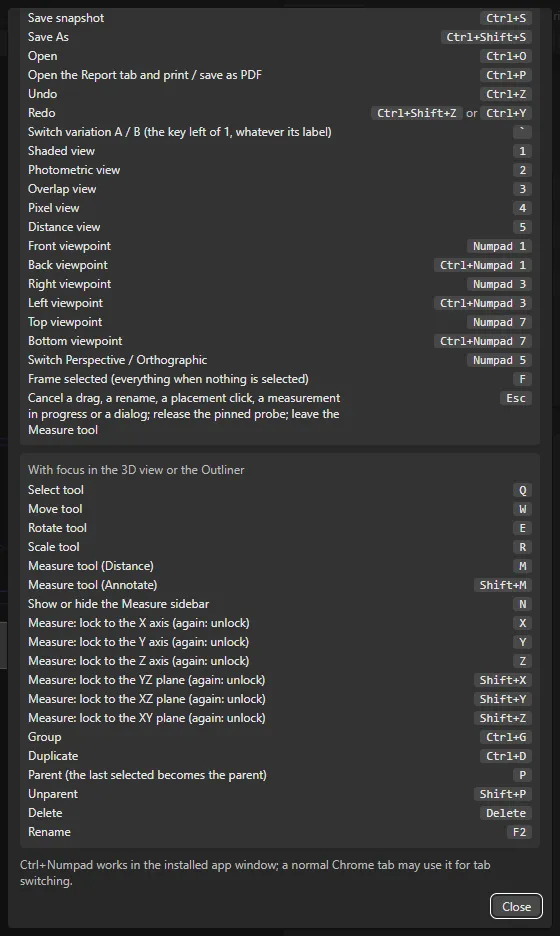
- Keys marked “anywhere” work in the whole project window.
- Keys marked “panels” work only when the focus is in the 3D view or the Outliner.
- No key acts while you type in a text field. No key acts while a menu, list, popover or dialog is open. Text fields keep their own keys, undo included.
- Letter and number keys use the physical key position. They work on other keyboard layouts.
Ctrl+Zand the file keys use the label on the key. Ctrl+Numpadworks in the app window.
Anywhere in the window
Section titled “Anywhere in the window”| Key | Action |
|---|---|
Ctrl+S |
Save snapshot |
Ctrl+Shift+S |
Save As |
Ctrl+O |
Open |
Ctrl+P |
Open the Report tab and print / save as PDF |
Ctrl+Z |
Undo |
Ctrl+Shift+Z or Ctrl+Y |
Redo |
` (the key left of 1) |
Switch variation A / B |
1 |
Shaded view |
2 |
Photometric view |
3 |
Overlap view |
4 |
Pixel view |
5 |
Distance view |
Numpad 1 |
Front viewpoint |
Ctrl+Numpad 1 |
Back viewpoint |
Numpad 3 |
Right viewpoint |
Ctrl+Numpad 3 |
Left viewpoint |
Numpad 7 |
Top viewpoint |
Ctrl+Numpad 7 |
Bottom viewpoint |
Numpad 5 |
Switch Perspective / Orthographic |
F |
Frame selected (everything when nothing is selected) |
Esc |
Cancel a drag, a rename, a placement click, a measurement in progress or a dialog; release the pinned probe; leave the Measure tool |
With focus in the 3D view or the Outliner
Section titled “With focus in the 3D view or the Outliner”| Key | Action |
|---|---|
Q |
Select tool |
W |
Move tool |
E |
Rotate tool |
R |
Scale tool |
M |
Measure tool (Distance) |
Shift+M |
Measure tool (Annotate) |
N |
Show or hide the Measure sidebar |
X, Y, Z |
Measure: lock to the X, Y or Z axis (press again to unlock) |
Shift+X, Shift+Y, Shift+Z |
Measure: lock to the YZ, XZ or XY plane (press again to unlock) |
Ctrl+G |
Group |
Ctrl+D |
Duplicate |
P |
Parent (the last selected object becomes the parent) |
Shift+P |
Unparent |
Delete |
Delete |
F2 |
Rename |
The lock keys work while you place point B of a measurement or drag an end. Two axis keys together lock the plane of both axes: X then Y gives the XY plane, the same as Shift+Z. A third key replaces the older of the two. The lock keys use the label on the key, so they follow your keyboard layout. On a German keyboard, Z is the key with the label Z.
Esc order
Section titled “Esc order”Each Esc cancels one thing. The order is:
- A drag.
- A rename.
- A placement click (this includes point A of a measurement).
- A dialog.
- The pinned probe.
- The search field of the Outliner.
- The Measure tool (back to Select).
Mouse and number fields
Section titled “Mouse and number fields”- Middle mouse button in the 3D view: orbit. Right mouse button: pan. Wheel: zoom. See 3D View.
Alt+clickon a surface: pin the probe.- Gizmo drags (Move, Rotate, Scale): with the Magnet off,
Ctrlsnaps. With the Magnet on,Ctrlmeans free movement. See 3D View. The Magnet has no key. - Number fields: drag with the left button.
Shiftgives fine steps.Ctrlsnaps. The middle button opens the Value Ladder. See Properties. - While you edit a number field,
Ctrl+Sfirst commits what you typed.
Other keys
Section titled “Other keys”Ctrl+Nis not used. The web engine inside the app keeps it.- In the History panel, the arrow keys,
HomeandEndmove between the snapshot rows.
The Measure keys are explained in Measure Tools.
See also: Menus, Measure Tools, 3D View, Outliner, Interface Tour